
You have found a useful skill on GitHub. The next step is putting it to work.
TutorGPT lets you import Agent Skills through a GitHub link and use them online. You can choose individual skills from a repository, select an imported skill for your task, and describe what you want to create—all through the browser interface.
If you already have skill files, you can upload them instead.
Agent Skills provide reusable instructions and resources for specific tasks. Your request supplies the details: what you want to accomplish, who the result is for, and what information it should include. Together, they give the AI a clearer approach to the work.
This guide shows you how to import Agent Skills from GitHub, use them in TutorGPT, and try a presentation example with Anthropic’s PPTX skill. You will also find short example requests and answers to common questions.
How to Import Agent Skills from GitHub into TutorGPT
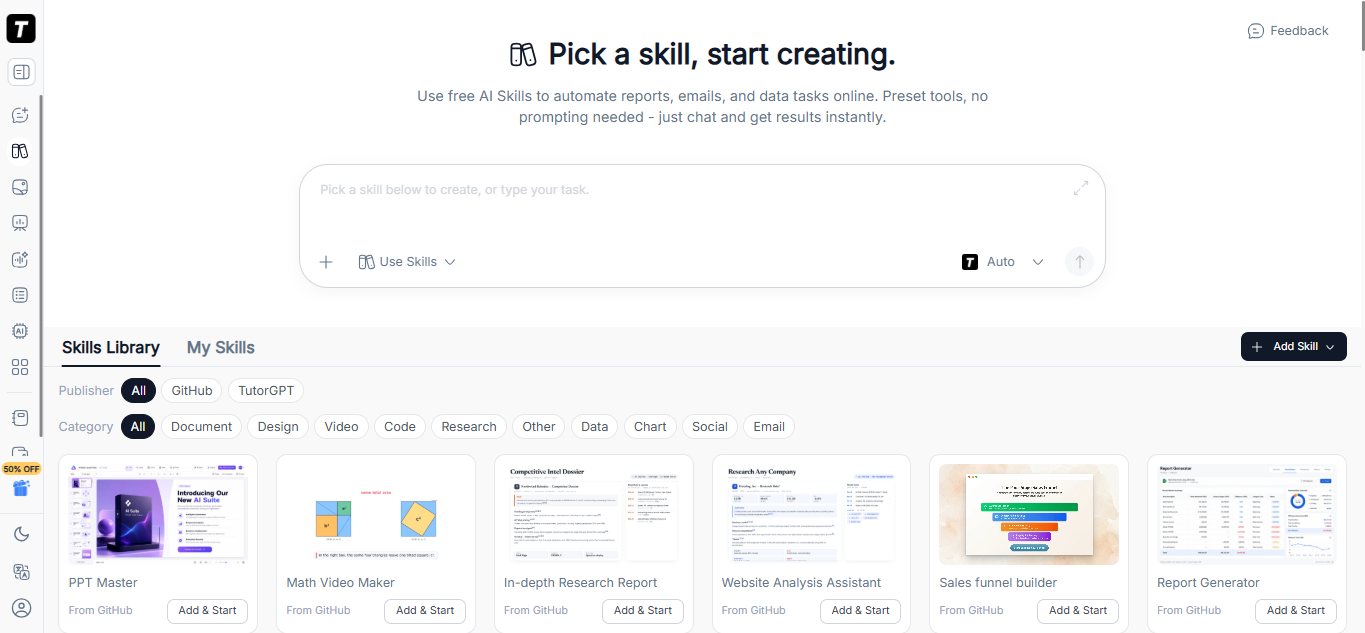
Start with a skill that matches something you want to do. For example, choose a presentation skill for a slide deck or a writing skill for a document.
Having a small task in mind makes your first import more useful. You can evaluate the skill against a clear goal instead of adding it without knowing what to try.
Log In and Open “Import Skill from GitHub”
Open Agent Skills and log in to your TutorGPT account. Login is required to import skills.
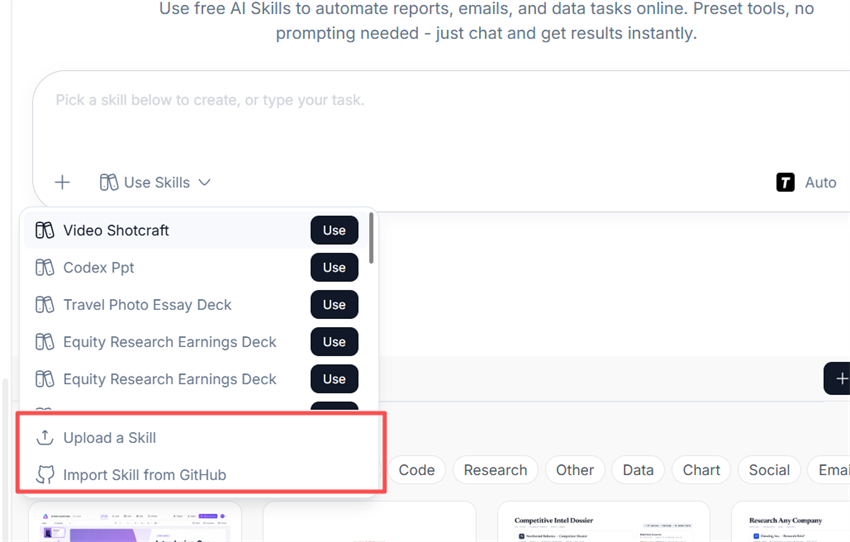
You can find Import Skill from GitHub in either of these menus:
- Use Skills, beneath the task input.
- Add Skill, above the skills library.
Choose the import option to begin.
If you are already preparing a task, the Use Skills menu keeps the import action close to where you will work. If you are exploring the library, use Add Skill to bring in a skill you have found elsewhere.
[Insert screenshot: highlight “Import Skill from GitHub” in the Use Skills menu.]
Paste Your GitHub Skill Link
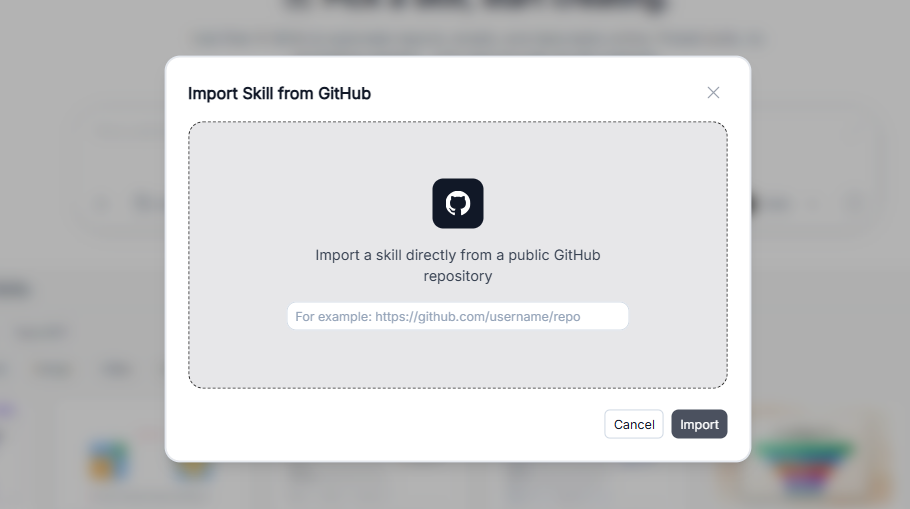
Open the skill’s page on GitHub, copy its URL, and paste it into the import interface.
For the presentation example in this guide, use Anthropic’s PPTX skill. Its folder contains a SKILL.md file and supporting scripts.
Before importing other GitHub Agent Skills, read their descriptions. Check whether the intended output matches your task. A skill that helps plan presentation content may have a different purpose from one that works with presentation files.
Use the link to the skill or repository itself. A tutorial or article mentioning a skill is useful background, but it is not the source you want to import.
Keep the original GitHub link available so you can revisit the skill’s instructions when needed.
Select the Skills You Want to Import
Some repositories contain several Agent Skills. TutorGPT lets you choose which ones to import.
Select the skills relevant to your current work and follow the prompts to complete the import. For a first attempt, choosing one skill makes the process easier to follow.
For example, if you want to create a presentation, start with the PPTX skill. You can add other skills later as you find more tasks for them.
Once the import finishes, the next step is selecting the skill for use. Importing Agent Skills adds them to your available options; selecting a skill tells TutorGPT which one you want to use for the task.
[Insert screenshot: show the skill selection step with one relevant skill selected.]
How to Use Imported Agent Skills Online
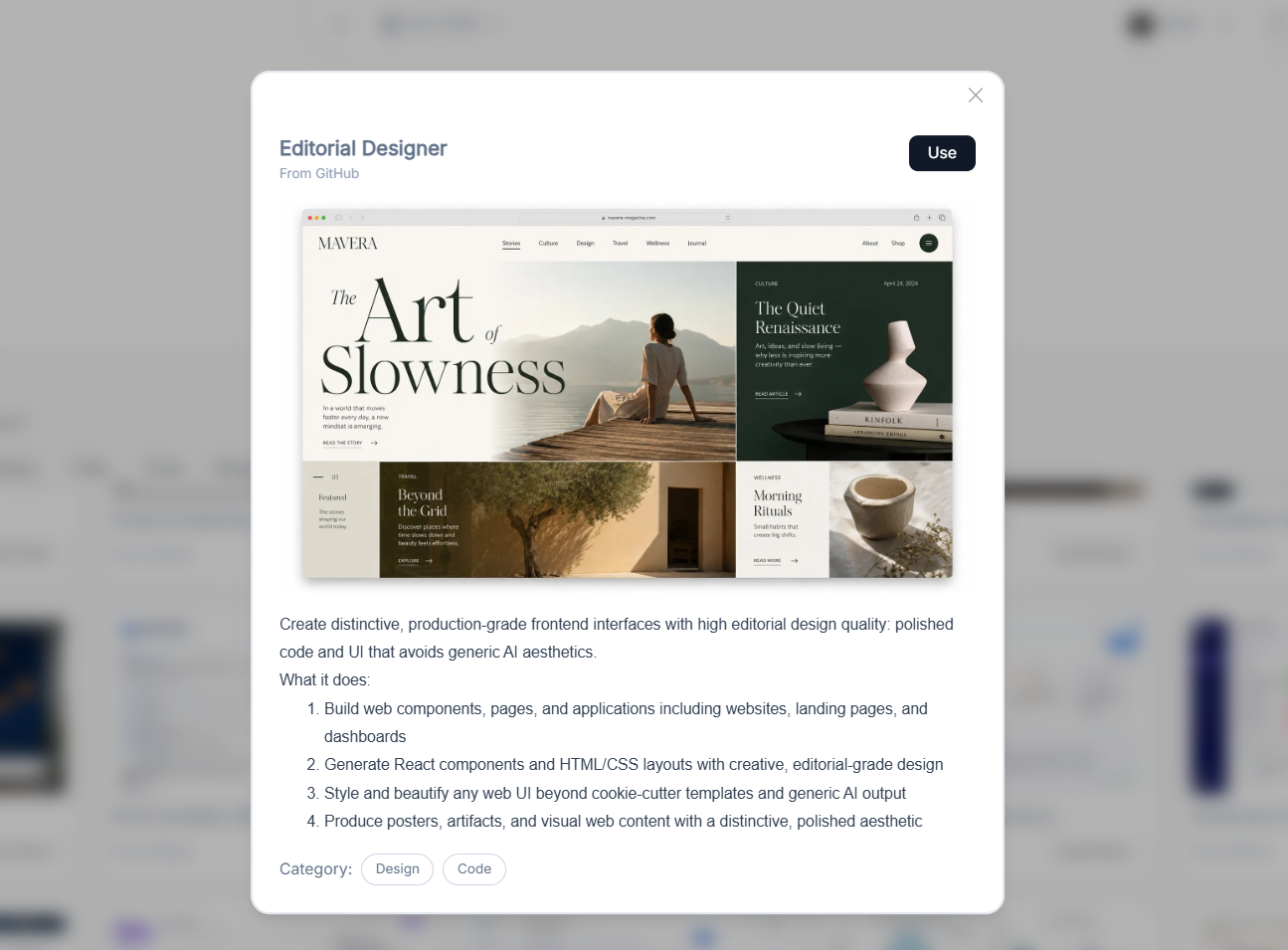
After importing, you can start working with the skill from the task input.
The basic process is simple: select a skill, describe the result you need, and review the response. You do not need a lengthy prompt to get started, but a few useful details will help.
Select Your Skill from “Use Skills”
Open Use Skills, find your imported skill, and click Use beside it.
Check the name before entering your request. This is particularly helpful when you have imported multiple Agent Skills with similar names or overlapping purposes.
Choose the skill most closely related to your deliverable. If you need a presentation file, select the presentation skill. If you need a written report, use a skill designed for that type of work.
This is how you use Agent Skills in your browser without manually placing them in a local coding agent’s directory.
Describe Your Task and Output Requirements
Write your request as a short brief. Explain what you want, who it is for, and any requirements that would change the result.
For example:
Create a short presentation explaining how small businesses can use AI. Write it for business owners with no technical background and include practical examples.
You can make the request more specific by adding a slide count, preferred style, or required output format.
These details are useful across different Agent Skills:
| Detail | Example |
|---|---|
| Topic | How small businesses can use AI |
| Audience | Business owners with no technical background |
| Scope | Six slides with three practical use cases |
| Style | Clear language and a clean layout |
| Output | A PowerPoint presentation file |
For tasks involving your business, provide the facts the AI needs. Include relevant product details, source notes, or verified figures rather than expecting the skill to know them.
A clear request gives Agent Skills enough context to make useful choices while keeping the interaction simple.
Review the Result and Request Changes
Check the result against your original request.
Look for missing sections, incorrect facts, unnecessary detail, and formatting issues. If the result is visual, inspect readability as well as content.
Then ask for a focused change:
Make the introduction shorter and replace technical terms with plain language. Keep the practical examples.
You can also explain what should remain unchanged. For example, ask to simplify the wording while preserving the structure and source facts.
Agent Skills can support a repeatable workflow, but each result still needs review. A short follow-up is often the easiest way to bring the output closer to your needs.
Example: Import a GitHub PPTX Skill and Create a Presentation
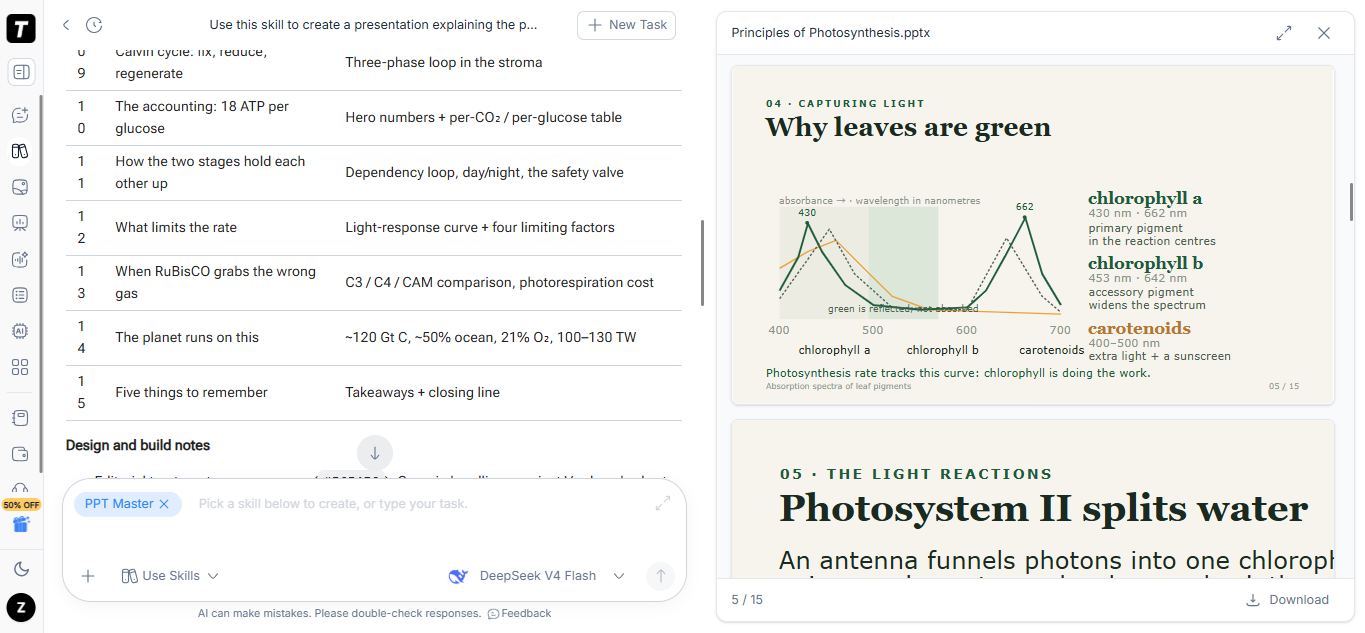
A presentation is a useful first example because the task has a clear outcome. You can specify the topic and slide count, then evaluate both the content and the visual result.
This walkthrough uses a general topic, so you can try it without preparing company documents or detailed source material.
Get Anthropic’s PPTX Skill Link
Open the PPTX skill in Anthropic’s GitHub repository and copy the link.
This points to the specific skill folder used for the example.
When choosing other Agent Skills from GitHub, follow the same process: read the purpose, identify the skill you need, and check any requirements mentioned in its instructions.
Starting with a clearly identified skill makes it easier to understand what you imported and what kind of task to try.
Create a Presentation with Your Imported Skill
In TutorGPT, choose Import Skill from GitHub, paste the PPTX link, and complete the import. Select the imported skill from Use Skills.
Then enter a short presentation request:
Create a 6-slide PowerPoint presentation about how small businesses can use AI in their daily work. Include practical examples for marketing, customer support, and reporting. Use a clean layout, concise text, and language suitable for beginners. Generate a PowerPoint file.
This gives the skill a topic, audience, structure, and output requirement without making the request difficult to read.
You can adapt it to another situation:
- For a class: explain a topic to students at a specific level.
- For a team meeting: summarize a project’s progress and next steps.
- For a client proposal: present a problem, proposed approach, and deliverables.
When your presentation depends on specific facts, add those facts to the request. For a project update, include the actual milestones and unresolved issues. For a proposal, provide the agreed scope rather than asking the AI to invent one.
[Insert screenshot: show the actual presentation generated from the example request.]
Review and Refine Your Presentation
Review the presentation before using or sharing it.
Check that it covers the requested use cases and that each slide communicates a clear idea. Look for text that is too small, crowded slides, unsupported statements, or examples that do not fit the audience.
You can request a simple revision:
Shorten the text on each slide and add more practical examples. Keep the design consistent throughout.
Or focus on one part:
Make the final slide a checklist of three actions a small business owner can try this week.
If you receive a text outline instead of the requested presentation file, clarify the output requirement and review any limitation described in the response.
The purpose of this example is to demonstrate the complete workflow: import a skill, select it, give it a task, and refine the output. Apply the same approach when testing other Agent Skills online.
How to Upload Agent Skill Files
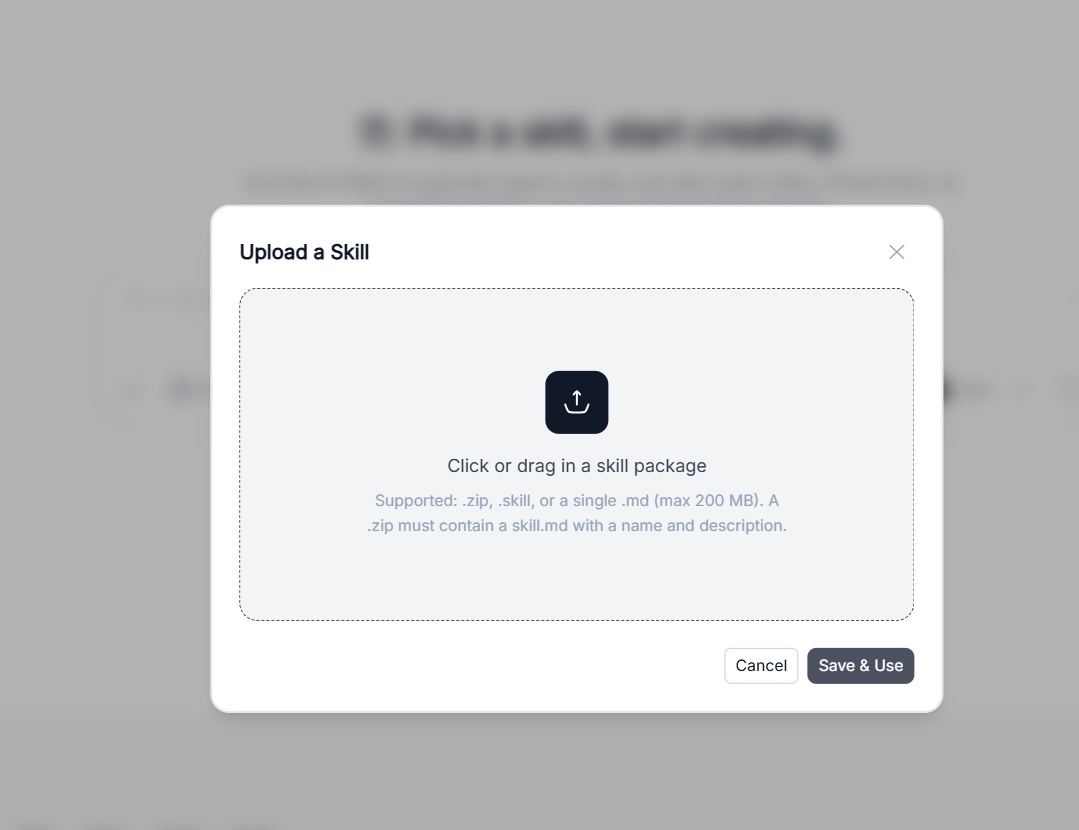
A GitHub link is not the only way to add a skill. TutorGPT also provides Upload a Skill for files you already have.
Choose the method that matches your starting point. GitHub importing is convenient when you have found a skill in a repository. File upload is useful when the skill files are already available to you.
Choose “Upload a Skill” and Add Your Files
Open Use Skills or Add Skill, then choose Upload a Skill.
Select your files and follow the format requirements displayed in the upload interface.
Check the requirements before submitting. Agent Skills may include supporting resources in addition to their main instructions, so it is useful to understand what the skill package contains.
If you are unsure whether you have all the necessary files, refer to the original skill documentation. Avoid assuming that copying a short description is equivalent to importing the complete skill.
Select and Use Your Uploaded Skill
Once the upload is complete, open Use Skills, find the uploaded skill, and click Use.
Describe a small task that matches its purpose and provide the relevant inputs.
For example, a writing skill needs a topic and audience. A report skill needs source information and the questions it should answer. A presentation skill needs the message you want the slides to communicate.
Uploaded Agent Skills follow the same practical workflow as those imported from GitHub: select, request, review, and refine.
FAQs About Importing and Using Agent Skills Online
Do I Need to Log In to Import Agent Skills?
Yes. You need to log in to TutorGPT before importing Agent Skills from GitHub or uploading skill files.
After signing in, open Use Skills or Add Skill to access the import options. Login is the first step in the workflow described in this guide.
Can I Choose Individual Skills from a GitHub Repository?
Yes. When a repository contains multiple Agent Skills, you can select the ones you want to import.
Choose skills based on your current tasks. A smaller, relevant selection makes it easier to find the right option and assess whether each skill is useful before adding more.
Do I Need to Install a Local Coding Agent?
You can follow this workflow through TutorGPT’s online interface without manually installing the skill into a local coding agent.
Importing, selecting, and submitting tasks take place in the browser. Individual Agent Skills may still have requirements that affect which operations they can complete.
Can I Upload Skill Files Instead of Using a GitHub Link?
Yes. Select Upload a Skill from Use Skills or Add Skill, then follow the upload requirements shown in the interface.
After uploading, select the skill and enter your task. This gives you another way to use Agent Skills online when your starting point is a set of files rather than a GitHub URL.
Will Every GitHub Agent Skill Work in TutorGPT?
Do not assume every skill has the same requirements or compatibility.
Some GitHub Agent Skills depend on specific tools, external services, credentials, or supporting resources. Read their instructions and start with a small representative task.
Importing a skill and successfully completing every operation it describes are separate things. Evaluate the result against the work you actually need it to do.
What Should I Check If a Skill Fails to Import?
First, confirm that you are logged in and that the GitHub link opens correctly. Check that it points to the intended skill or repository.
If several skills appear, review your selection. For uploaded files, check the requirements displayed in the interface.
Read any error message before retrying. If importing succeeds but the task fails, check the skill’s requirements and the reported limitation rather than repeatedly importing the same files.
Start with one useful skill and one clear task. Open Agent Skills, import your GitHub link, and try the workflow with a result you can review and improve.