
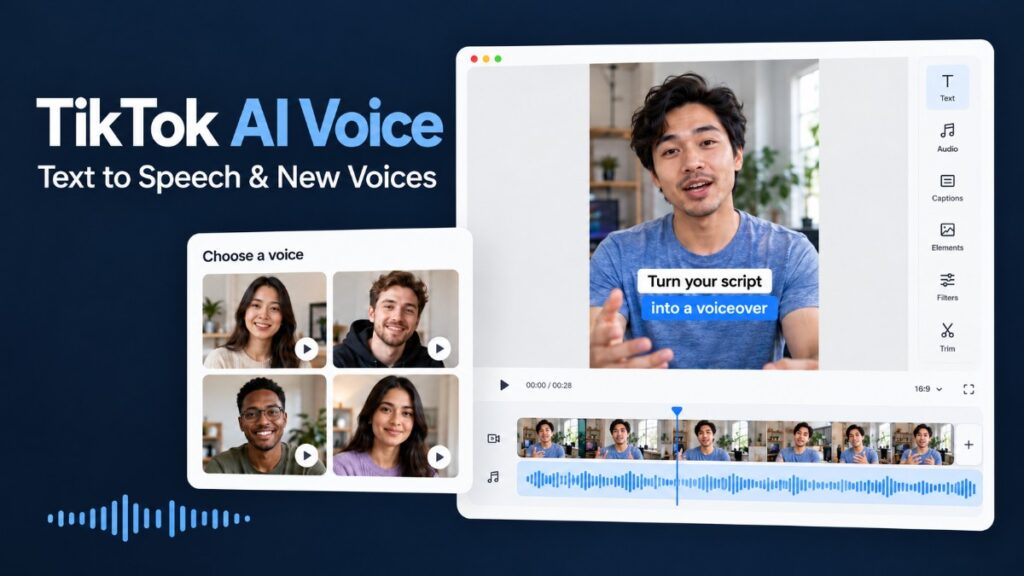
To use TikTok AI Voice, add text to your video, select the text box, and choose Text-to-speech. If your editor offers voice options, preview them and pick one. Then play the video to check that the narration starts and finishes where you need it.
That is the straightforward version. The frustrating version begins when your screen looks nothing like the tutorial.
You have finished editing. The captions are ready. Then the voice you used yesterday disappears, or TikTok reads everything in a default voice you cannot change. What should have been the final step becomes another evening of searching for answers.
A workable TikTok AI Voice setup needs a backup route. Below, you will learn how to use the built-in feature, find alternative voices, and finish your video when the usual controls let you down.
How to Use TikTok AI Voice on Your Video
Add Text and Turn On Text to Speech
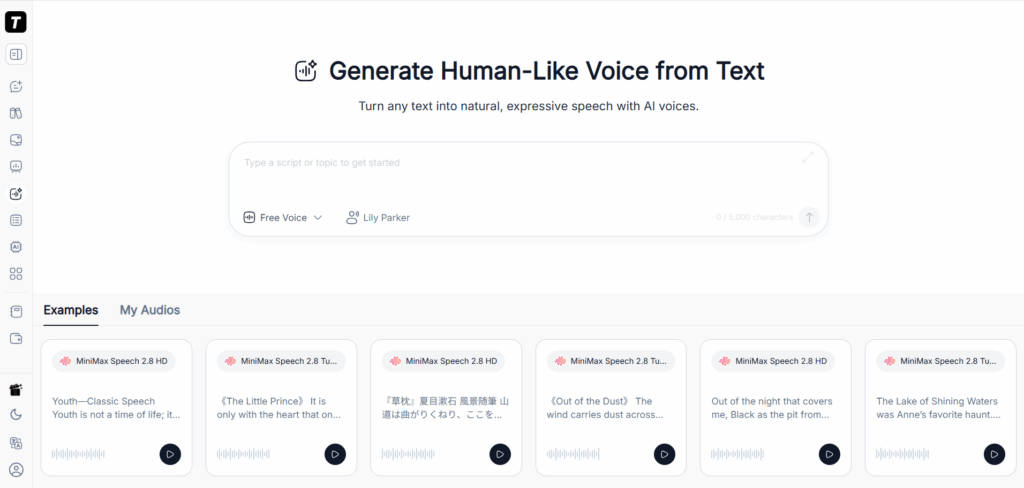
Start a new TikTok video and record or upload your footage. Add a text box in the editor, type the words you want spoken, and finish editing the text. Select that text box and look for Text-to-speech.
Test one short sentence before entering your full script. If TikTok AI Voice works, you can build from there without risking time on text formatting that you may need to redo.
Use an editable text layer. Words already embedded in a screenshot or uploaded video are not the same as text added through TikTok’s editor.
Choose an Available Voice and Preview the Narration
Where voice selection is available, compare the options using your own sentence. A lively sample can sound appealing in isolation, then feel completely wrong over a quiet personal story.
Listen for whether the delivery belongs in the video. Forced enthusiasm can make a thoughtful explanation feel like an advertisement; an overly dramatic narrator can overwhelm a simple demonstration.
The right TikTok AI Voice lets viewers concentrate on what you are saying.
Set When the Narration Starts and Check Where It Ends
Adjust the text’s timing using the controls available in your editor, then replay the result. Do not assume changing the visible text duration will produce exactly the audio timing you expect.
If the narration says “look at the difference,” the comparison should be visible at that moment. Extend the shot or shorten the sentence when they do not line up.
Check the ending carefully. Losing the last word of a TikTok AI Voice recording can make an otherwise finished video feel abruptly cut short.
How to Change Your TikTok Text-to-Speech Voice
Change the Voice on an Existing Text Clip
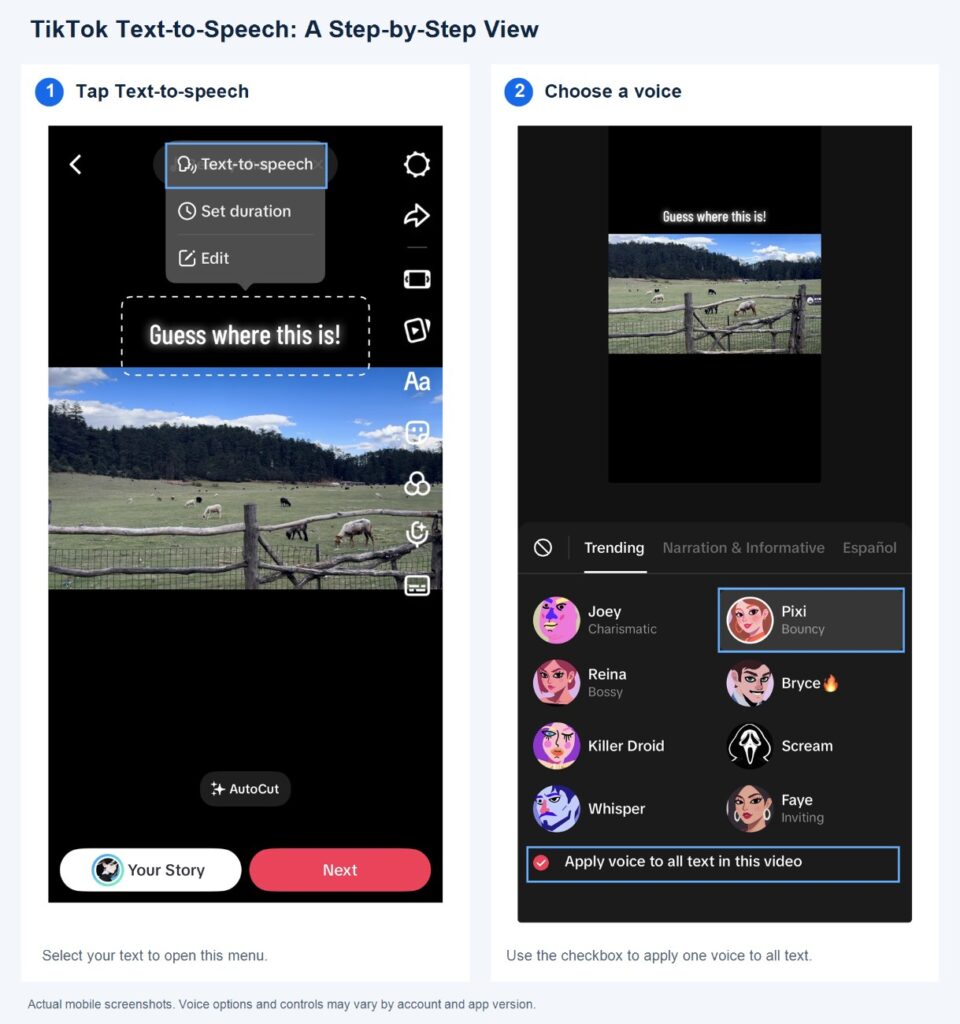
Select a text clip that already has narration and reopen its text-to-speech controls. If a voice selector or change-voice option appears, choose an alternative and preview the complete sentence.
Switching your TikTok AI Voice can change the reading speed. A replacement that sounds better may finish later, so check the surrounding cuts before moving on.
For videos with multiple text clips, review each clip rather than assuming one change applies everywhere.
Why You May Only See One Default Voice
It is easy to feel as though you are overlooking something when every tutorial shows a button you cannot find. But a missing selector does not automatically mean you made a mistake.
Creators have encountered different TikTok AI Voice options across accounts and devices, including separate accounts on the same phone. Those differences do not establish one universal cause or fix.
If the editor automatically applies a default voice and offers no alternatives, stop searching the same menu repeatedly. You can still finish the video with an externally generated voiceover.
What to Do When Your Favorite Voice Disappears
Losing a familiar narrator can feel surprisingly disruptive. After using the same voice across a series, it becomes part of how you recognize your own content. A near-match may sound wrong even when someone else barely notices.
Check an existing project or another client you already use, but do not assume a saved voice can still generate new lines. Preserve finished audio before experimenting.
If your usual TikTok AI Voice remains unavailable, choose a replacement deliberately. Matching its pace and emotional tone is often more useful than endlessly chasing identical pitch.
What to Do If TikTok Text to Speech Is Missing or Not Working
Check for Updates and Restart the App
Save your work, check for an app update, and restart TikTok. Create a fresh test video with one short text box added inside the editor.
This helps separate a TikTok AI Voice problem affecting one draft from a broader issue. If the new test works, return to your original project and try replacing the affected text layer.
If it fails too, you have learned something useful. You do not need to rebuild the entire video to prove the same problem again.
Check Whether the Problem Affects One Account or Device
If another device or account is already available to you, try the same sentence there. Record what differs: the app version, visible controls, or whether speech generates at all.
Avoid changing several settings simultaneously. If something starts working, you will have no idea which change mattered.
A support request describing exactly what happens is more actionable than “TikTok AI Voice does not work.” Include a screenshot of the missing control where possible.
Save Your Drafts Before Trying a Reinstall
When a deadline is approaching, reinstalling can feel like the only remaining option. Unfortunately, it is not a dependable fix, and locally stored drafts may be lost.
Before uninstalling, preserve footage, scripts, and any edits you need. A saved video can protect the visible result without preserving all its editable layers.
The frustration of a missing TikTok AI Voice feature is manageable. Discovering that your unfinished videos have disappeared creates a much bigger problem.
Use an External Voiceover When the Built-In Tool Still Fails
Give troubleshooting a stopping point. If basic checks do not help, move the narration outside TikTok.
Generate an audio file, import it into a video editor, and combine it with your footage. Upload the finished video afterward. Its spoken track no longer depends on whether your account displays a text-to-speech button.
This is a practical TikTok AI Voice workflow for anyone who needs to publish today rather than wait for an uncertain fix.
How to Find the AI Voice You Heard on TikTok
Look for Voice Names and Tool Credits in the Original Post
You may know exactly which voice you want: the calm narrator you hear in story videos, or the energetic delivery that makes an explanation feel effortless. Finding its name is another matter.
Start with the original caption, comments, and creator profile. Look for tool credits or replies about narration.
A TikTok AI Voice may have been generated in another app. Searching only TikTok’s built-in menu can therefore lead nowhere, however thoroughly you check it.
Search a Voice Library Using an Audio Sample
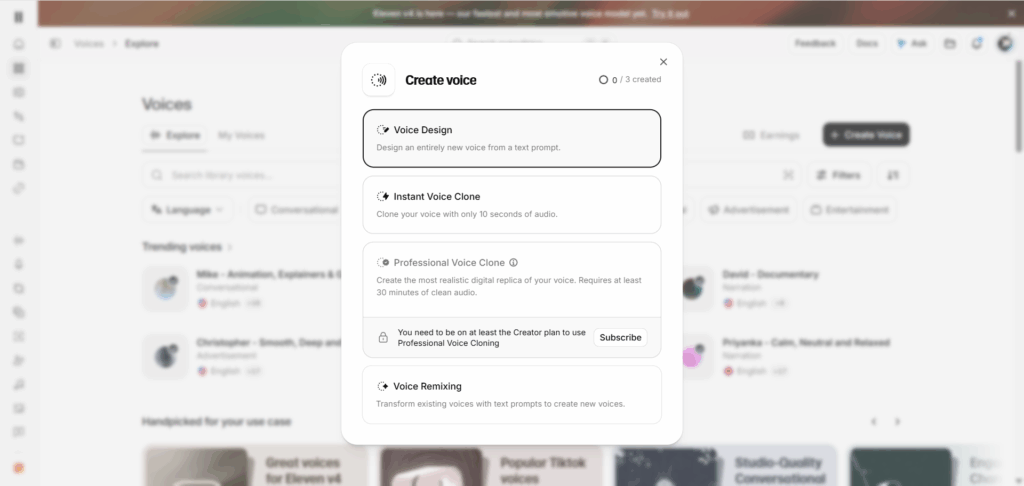
Some voice libraries support audio-based searches. ElevenLabs, for example, can use an uploaded audio or video sample to suggest matching or similar voices.
Choose a short section with clear speech and as little music as possible. Heavy effects or overlapping speakers make comparison harder.
Treat results as candidates. An audio search may locate the original TikTok AI Voice if it is available in that library, but it cannot guarantee an exact match for every clip.
Compare Similar Voices When the Original Is Unavailable
Use the same passage to test each candidate. Include the opening line, a question, and a difficult name or term from your script.
A familiar voice can still sound different because of the model, speed, punctuation, or editing applied to it. Listen to whole sentences rather than comparing a single word.
If a TikTok AI Voice alternative conveys the right mood clearly, it may already solve your production problem—even if it is not the sound you originally searched for.
How to Create and Add New Voiceovers with TutorGPT AI Voice
Try Your Script with Different Available Voices
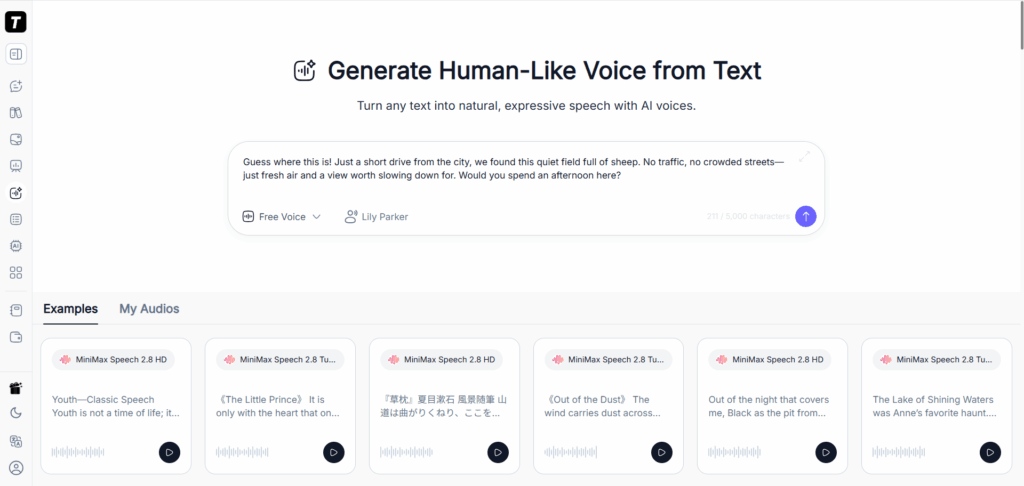
Open TutorGPT AI Voice and enter a short excerpt of your script. It supports turning text into speech and downloading the generated audio.
Use your own opening rather than a generic test sentence. Where voice or model choices are available, compare them with identical wording, and check any displayed usage limits before generating multiple versions.
For your TikTok AI Voice project, the useful test is simple: would you want to keep listening after the first sentence?
Generate and Review the Full Voiceover
Once the sample fits, generate the remaining narration and listen from beginning to end.
Do this before synchronizing every cut. Discovering a mispronounced product name after finishing the edit means reopening work you thought was complete.
Save an approved version before making further changes. If a new generation alters the delivery unexpectedly, you still have a usable TikTok AI Voice track rather than a folder of uncertain alternatives.
Download the Audio and Import It into Your Video Editor
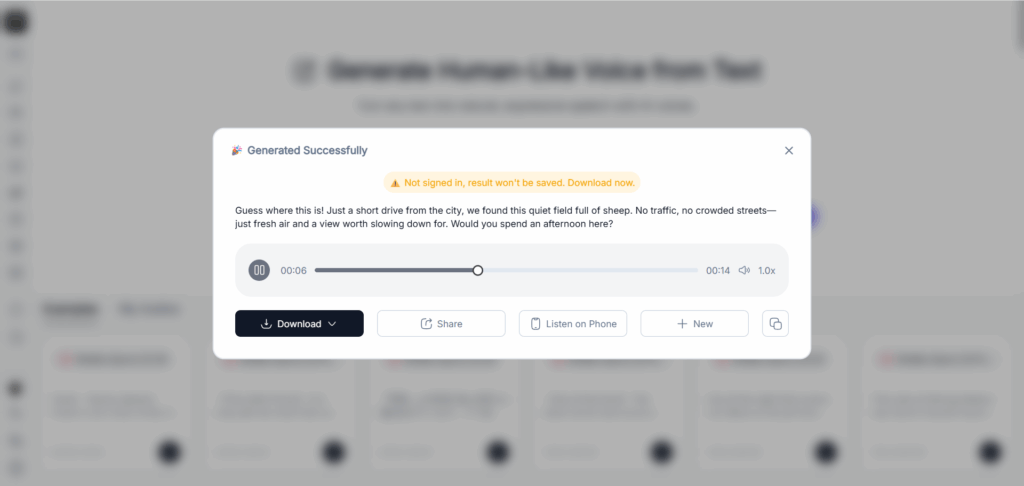
Download the finished audio, then import it alongside your footage in a video editor such as CapCut. Place the narration on its own timeline track.
If importing fails, check whether the downloaded file plays on your device and whether your editor supports its format. A compatibility problem is different from a generation problem; creating the same speech repeatedly may not help.
Keeping your TikTok AI Voice audio separate also makes it easier to replace one recording without rebuilding the visuals.
Align the Narration with Your Clips and Add Captions
Let each sentence guide the relevant shot. When the voice explains a button, show the button. When it describes a result, give viewers enough time to inspect that result.
Generate or add captions once the narration is settled, then correct their wording and timing. Check for overlapping camera audio, especially if the original footage includes speech.
Preview the exported TikTok AI Voice video, too. The final file—not just the editing timeline—is what your audience will hear.
How to Fix AI Voiceover Problems Before Posting
Fix Mispronounced Names, Words, and Unwanted Accents
One wrong name can make an otherwise convincing voiceover feel careless. Try writing out abbreviations and ambiguous numbers, or use a phonetic spelling in the narration script.
Keep the correct spelling in visible captions. Pronunciation guidance belongs in the input used to generate speech, not necessarily on screen.
If your TikTok AI Voice struggles throughout a language, start with a better-suited voice. Correcting dozens of words individually is a poor substitute for an appropriate language and accent.
Adjust Awkward Pauses and Narration That Runs Too Long
Before increasing playback speed, revise the sentence.
“Before beginning the process, ensure that the lid has been securely fastened” becomes “Tighten the lid before you start.” The second version gives the narrator less to stumble over and the viewer less to process.
Punctuation can influence delivery, though results vary between models. Regenerate a short passage to check the effect.
If your TikTok AI Voice still runs beyond the footage, cut repeated information or extend the shot. Rushed narration can make a simple instruction unnecessarily difficult to follow.
Correct Missing or Out-of-Sync Captions
Automatic captions do not always recognize the intended track. Check that the narration is enabled and select the appropriate audio source if your editor offers that control.
For a short video, manually correcting a few lines may take less time than repeatedly rerunning recognition. Break long captions into readable phrases and align them with the spoken words.
Any later change to TikTok AI Voice timing should trigger another subtitle check, especially after trimming audio near the beginning.
Balance the Voiceover with Background Music
Music can make a recording seem polished through headphones while covering important words on a phone speaker.
Set the narration to a comfortable level first, then bring the music in underneath it. If you need to concentrate to understand the words, lower the background track.
Also consider what the viewer expects. Someone watching a quiet demonstration may find an unexpectedly loud, cheerful TikTok AI Voice intrusive, even when the recording itself is technically clear.
How to Keep a Consistent Voice Across Your Videos
Save Your Voice Settings, Scripts, and Finished Audio
Keep the approved script, downloaded narration, and editing project together. Record the voice name or ID, model, and relevant settings where available.
Your finished audio preserves a performance you already approved. A saved voice name is only a reference; it cannot guarantee that future generations will sound identical.
This small habit makes a recurring TikTok AI Voice easier to maintain when you revisit a project weeks later.
Check Voice Availability and Costs Before Starting a Series
Before committing to a narrator, finish one complete video using the intended workflow. Confirm that generation, downloading, importing, and revisions fit your needs and budget.
Pay attention to the selected voice’s access requirements, not just whether the website advertises a free option. A preview is not proof that every future recording will have the same conditions.
Finding these limits on a short test is far less frustrating than discovering them halfway through a series.
Keep a Backup Voice for Future Videos
Choose an alternative with a compatible accent, pace, and emotional tone. Save a short sample alongside your usual settings.
Your backup TikTok AI Voice does not need to be indistinguishable. It needs to carry the content clearly enough that a missing voice will not stop you from finishing.
Start with one short script, produce the narration, and take it all the way through export. Once that workflow works, you can spend more time shaping the video—and less time wondering where yesterday’s voice went.
Conclusion
Getting a TikTok AI Voice to work should not take longer than creating the video itself. Start with the built-in text-to-speech feature, preview your narration, and check its timing. If a voice disappears or the controls are missing, you have another route: generate the audio separately and bring it into your editor.
You do not need to find the exact voice everyone else uses. A clear delivery that suits your content—and a workflow you can repeat—will serve you better than endlessly searching for a perfect match.
Try a short script with TutorGPT AI Voice, listen to the full result, and pair it with your footage. Save the audio and settings you like so your next video starts with a familiar process instead of another search for answers.