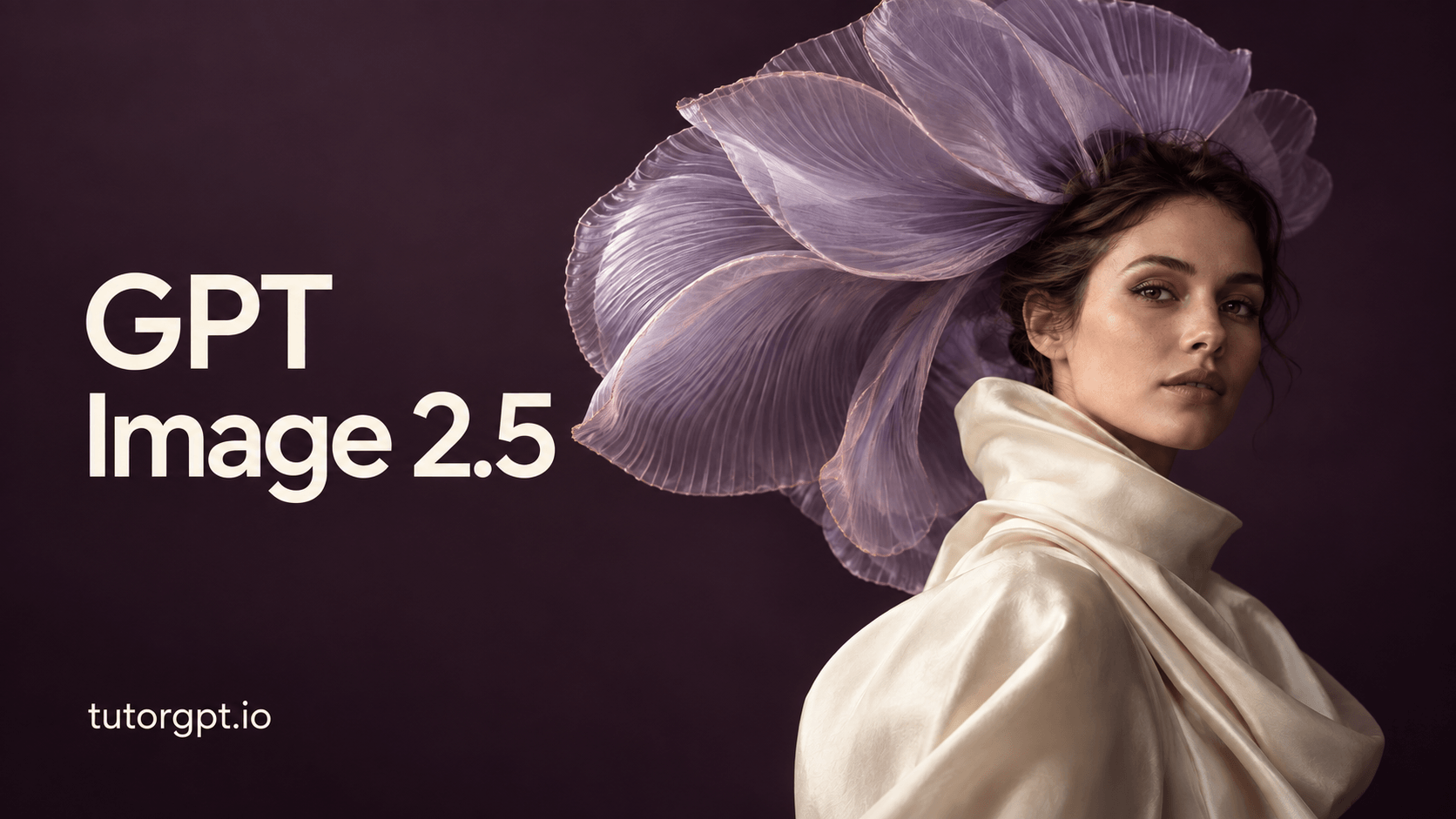




















GPT Image 2.5: Richer Details. More Consistent Edits.

Turn ideas and references into detailed images, with focused edits that preserve your subject.

GPT Image 2.5 - High-Fidelity AI Image Creation & Editing

Use GPT Image 2.5 on TutorGPT to create from text or references, refine details, and preserve subjects across edits with natural lighting and rich textures.

GPT Image 2.5 - High-Fidelity AI Image Creation & Editing

Trusted Worldwide

Built on reliable AI technology for effective learning and homework support. Trusted by learners, educators, and professionals worldwide.

Dublin
Atlanta
Klien
Davis
Capistirano
Everrette
Buffalo
Denver--public-school
Appleton
Greenville
HCS
Seattle-Public-Schools
Northside
Irvine
Norfolk
PCS
TheSteppingStonesGroup_black
Napperville
Logo24
YouTube
Princeton
Dublin
Atlanta
Klien
Davis
Capistirano
Everrette
Buffalo
Denver--public-school
Appleton
Greenville
HCS
Seattle-Public-Schools
Northside
Irvine
Norfolk
PCS
TheSteppingStonesGroup_black
Napperville
Logo24
YouTube
Princeton
Dublin
Atlanta
Klien
Davis
Capistirano
Everrette
Buffalo
Denver--public-school
Appleton
Greenville
HCS
Seattle-Public-Schools
Northside
Irvine
Norfolk
PCS
TheSteppingStonesGroup_black
Napperville
Logo24
YouTube
Princeton

A New Setting for Something Familiar

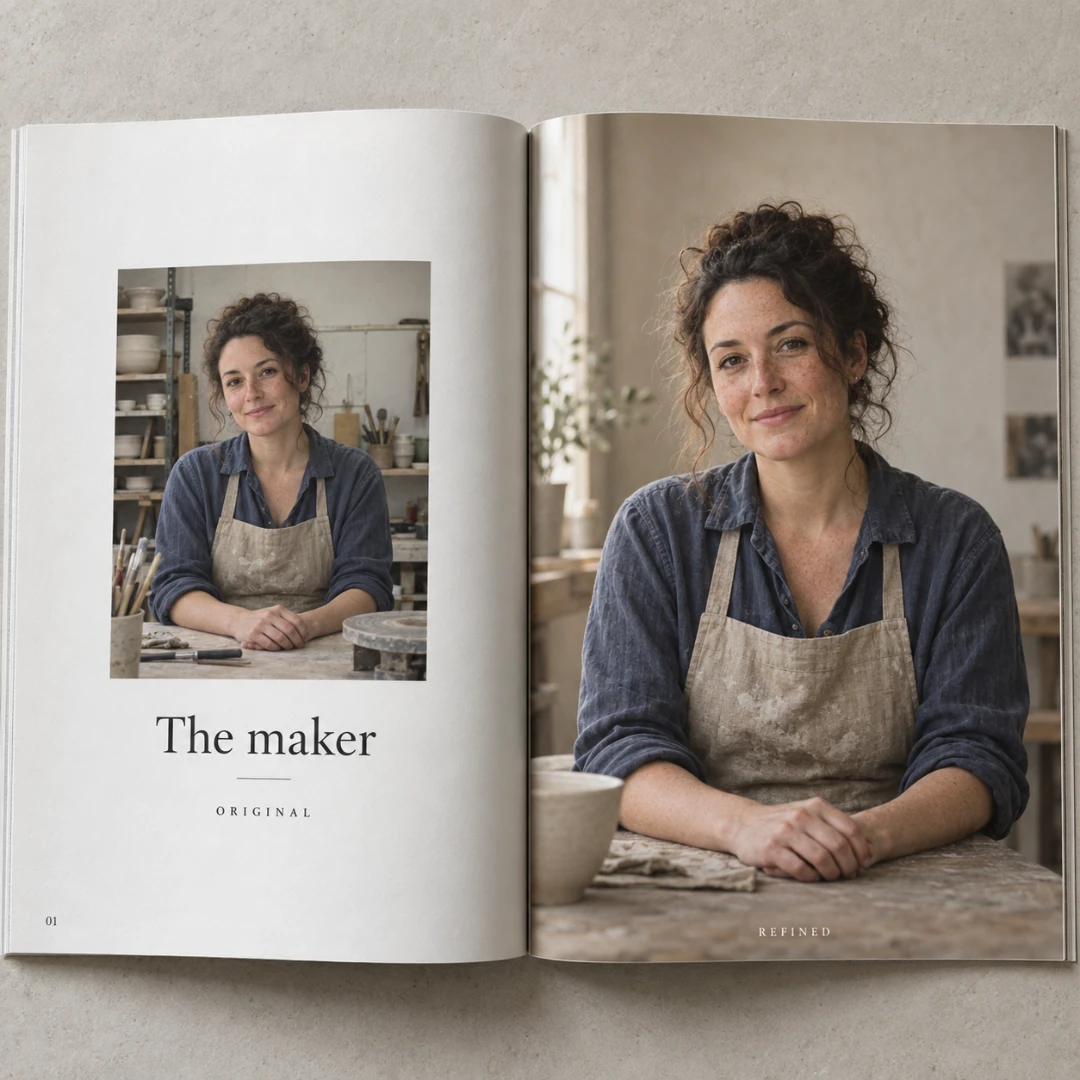
An image can be almost right and still miss what matters: a face that feels unfamiliar, a texture too smooth, or an edit that changes more than you intended. GPT Image 2.5 on TutorGPT brings more control to image creation and editing, with stronger reference fidelity, more natural lighting, and richer material detail. Reimagine a portrait, refine an editorial layout, or give a familiar object a different atmosphere—with better consistency as you make further changes. For another creative direction, explore Nano Banana 2 Lite or Seedream 5.0 Pro.

A New Setting for Something Familiar

More Room to Create with GPT Image 2.5

Follow an idea from its first impression to the details that make it feel right—with reference-guided generation, focused edits, and more consistency as you refine.

Let Your Reference Lead the Way

A portrait has a familiar expression. A product has a distinctive shape. GPT Image 2.5 is better at carrying those defining details into new settings and styles, with natural lighting and richer textures. Bring a reference photo and give your next image something real to build on.

Give the Small Details Your Attention

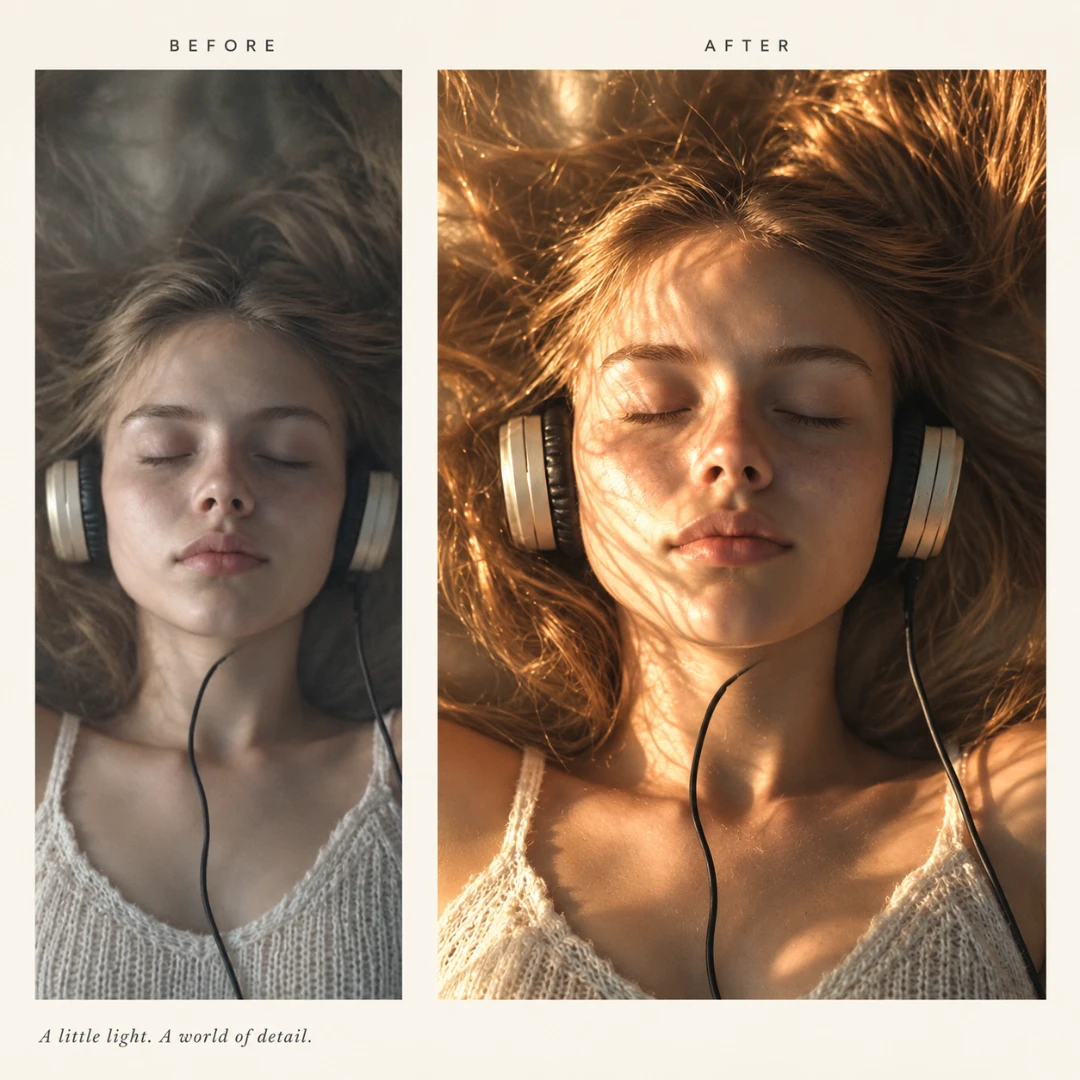
Sometimes a softer shadow or a different background brings the whole image together. Tell GPT Image 2.5 what you’d like to adjust and which elements to preserve. Focused AI image editing gives you more control over how the scene evolves.

Let Each Edit Build on the Last

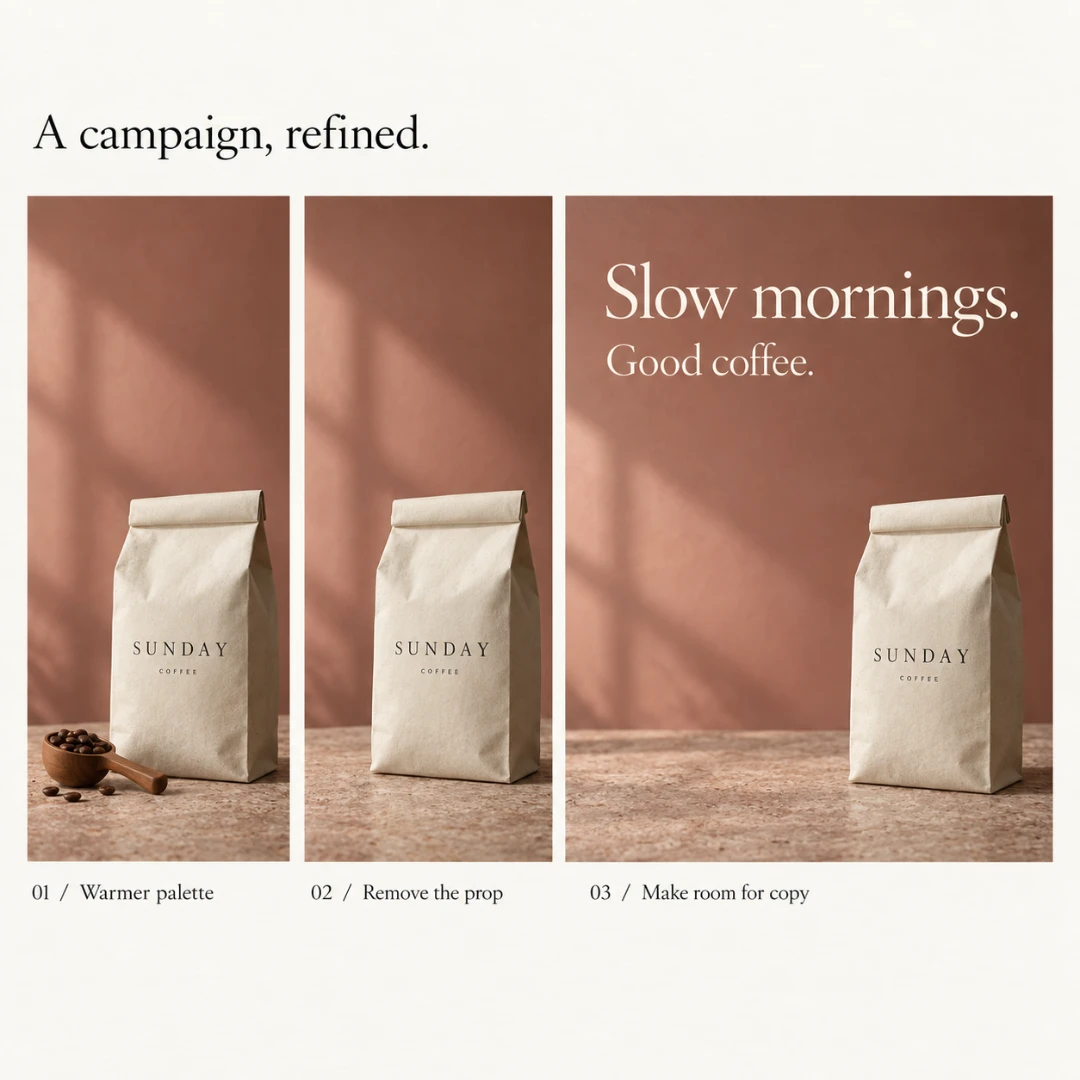
Creative work often finds its direction gradually. Start with the composition, adjust the palette, then refine the light. GPT Image 2.5 offers improved consistency across edits, helping you carry earlier choices forward as you work toward the image you imagined.

What Will You Make with GPT Image 2.5?

A product photo ready for a launch. A portrait with the right light. A campaign that needs one last change. Explore how GPT Image 2.5 helps turn familiar creative tasks into images you can shape, refine, and make your own.

Product Photography

Product Photography

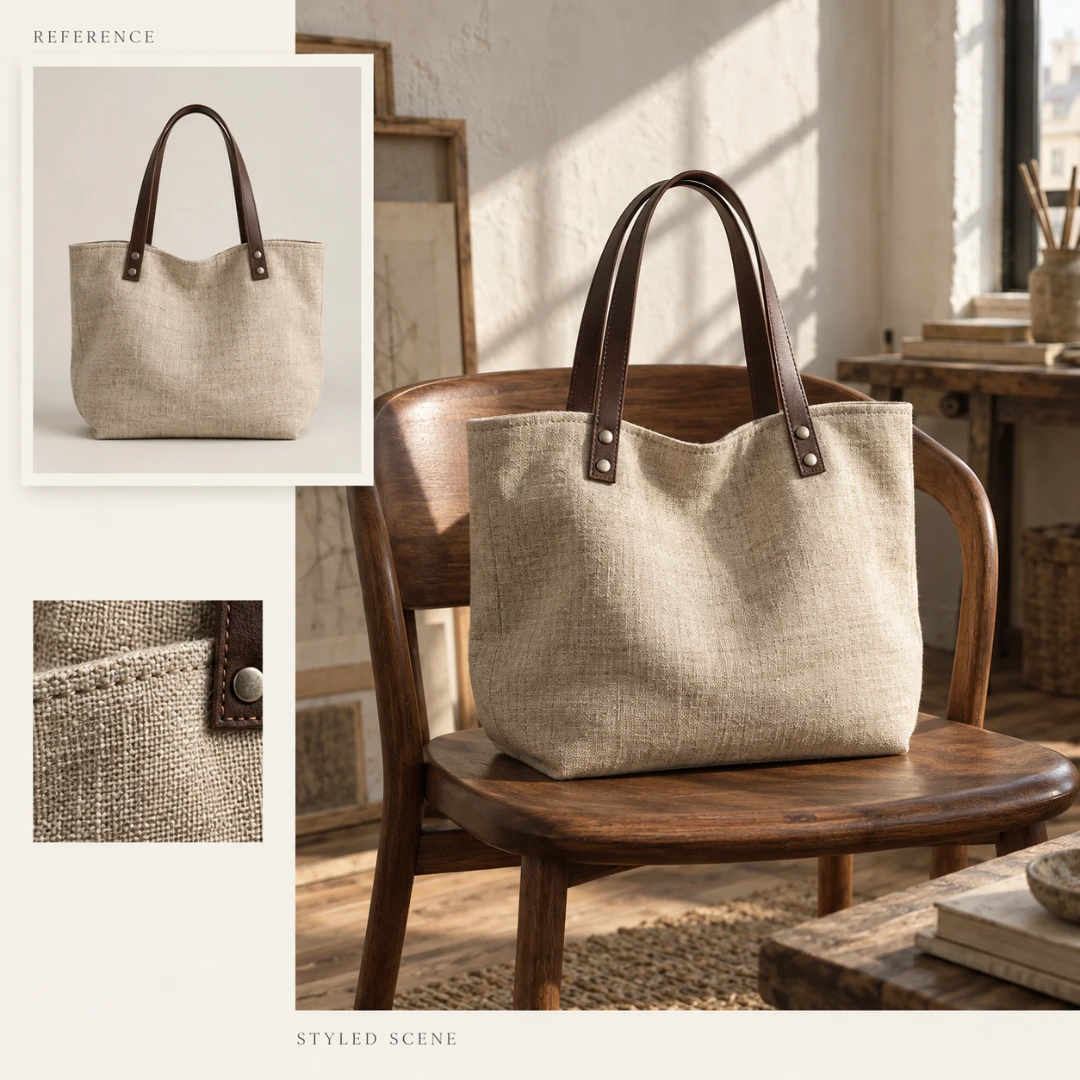
Let the Materials Tell the Story. The glaze on a handmade cup, the weave of a linen bag, the grain of a leather cover—small details give a product its character. Flat lighting can make them disappear. Use GPT Image 2.5 to develop a product photo into a carefully styled scene, with your reference guiding its shape, color, and finish. Adjust the light and surroundings, then check those defining details before choosing a visual for your shop or next collection.

How to Create and Edit with GPT Image 2.5

From a first thought to a final touch, start with a clear idea and refine it one step at a time.

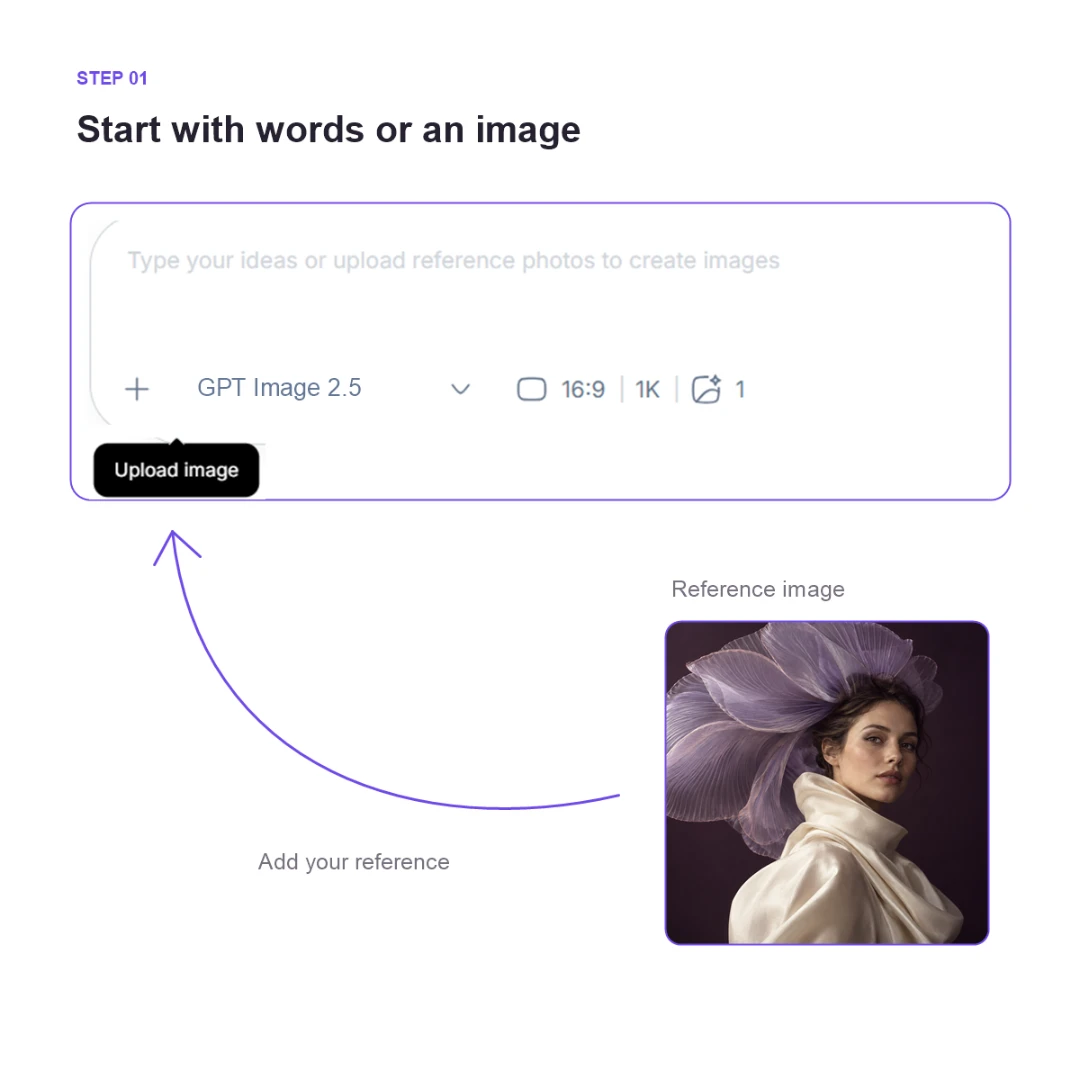
Start with Words or an Image

Start with Words or an Image

Describe something you’d like to create, or upload a photo or sketch as a reference. Include the subject, setting, and style that matter to you.

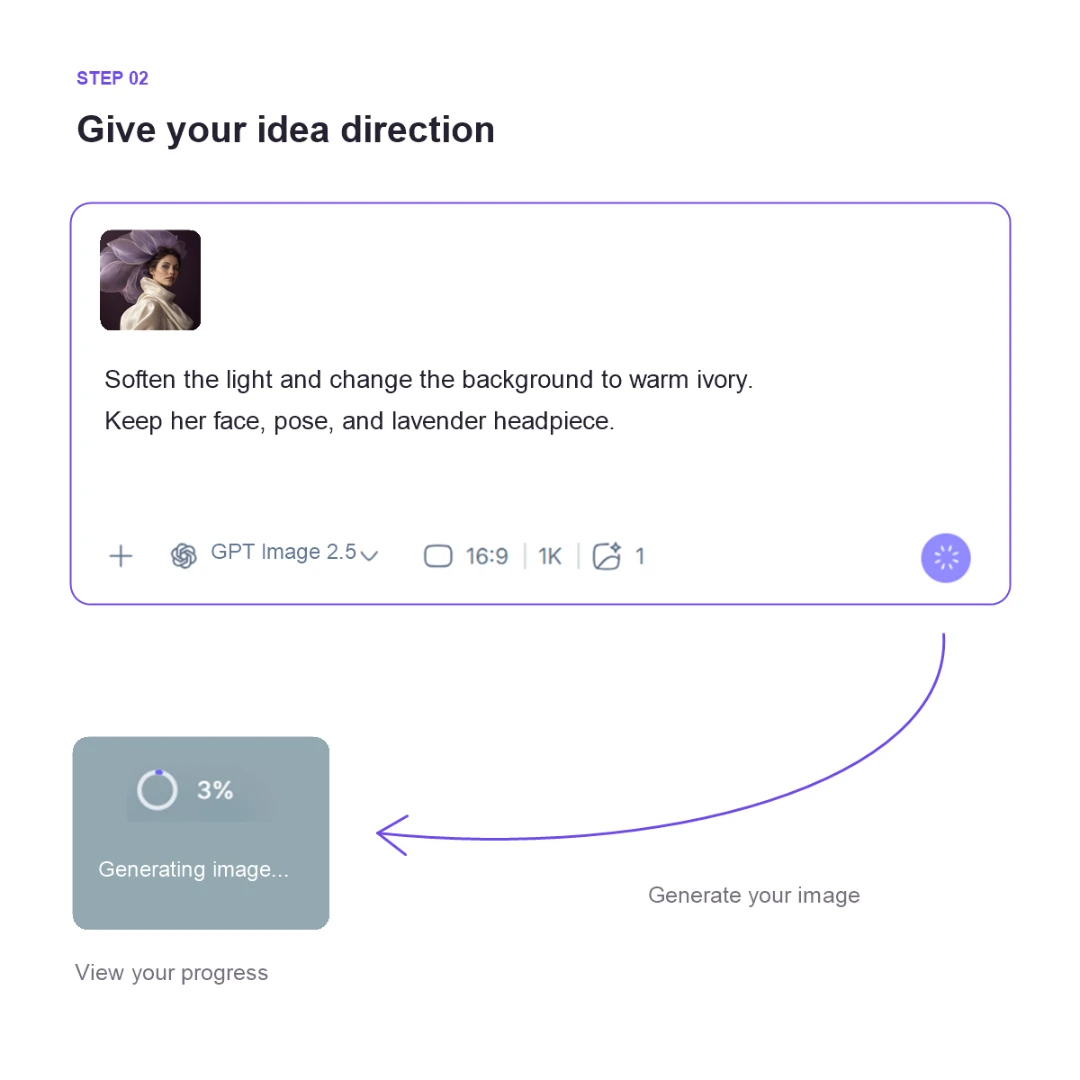
Give Your Idea Direction

Give Your Idea Direction

Tell GPT Image 2.5 how you picture the composition and lighting. If you’re editing, say what to change and what to preserve. A clear request gives you a useful starting point.

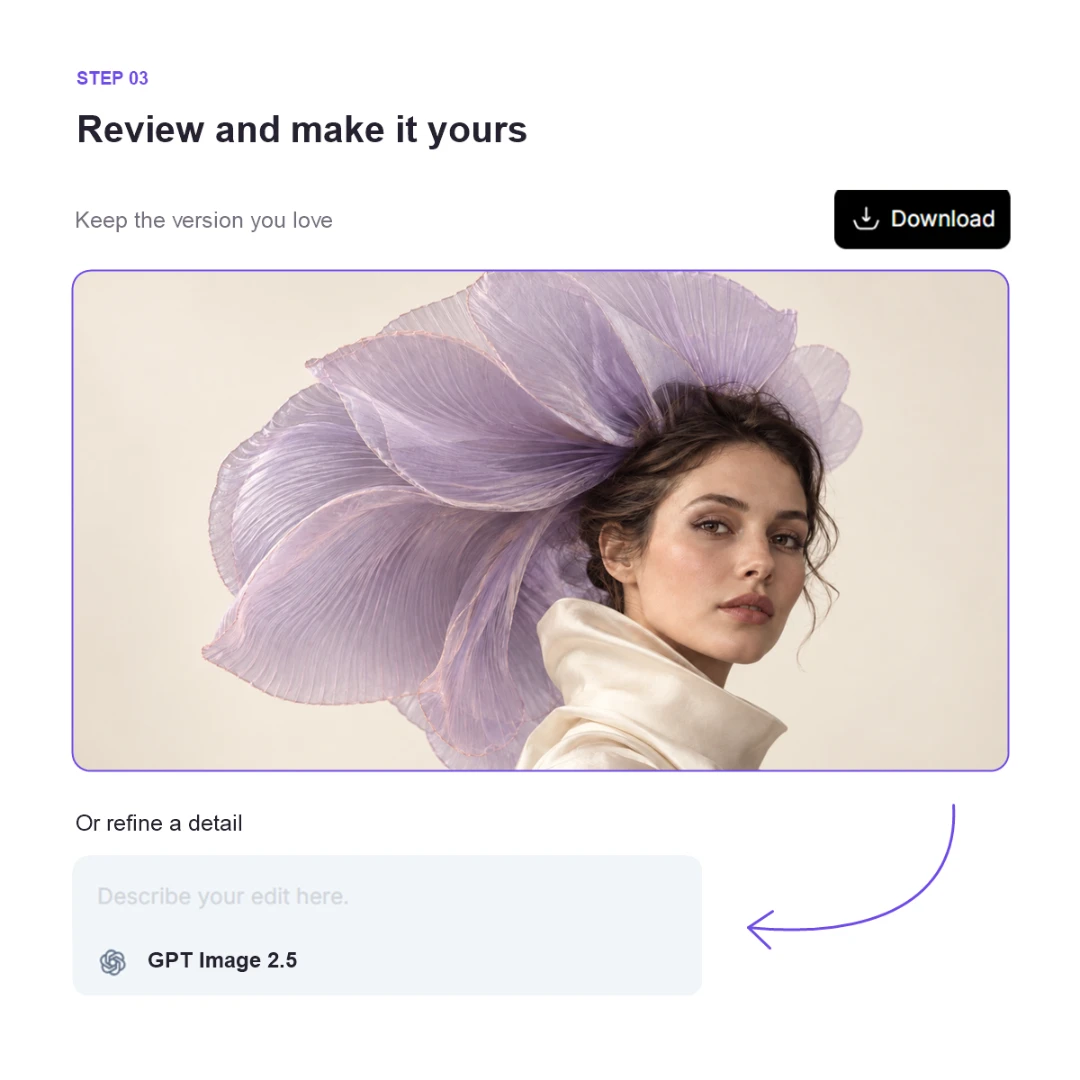
Review and Make It Yours

Review and Make It Yours

Generate your image, look closely, and choose your next adjustment. Use the result as a reference for another edit, or download the version you want to keep.

Everyday Creative Projects with GPT Image 2.5

Emily Carter avatar

Emily Carter

Ceramic Artist and Shop Owner

I photograph my pottery on the kitchen table, which is fine until the weather turns and everything looks grey. I tried GPT Image 2.5 on TutorGPT with a photo of a blue breakfast mug and asked for a brighter setting. The first version had too many props, so I asked for just a linen cloth. That felt much closer to my shop. I checked the handle and glaze against the original before choosing the image.
Marcus Bennett avatar

Marcus Bennett

Freelance Editor

My website photo was taken at a friend’s wedding. Good expression, terrible background for a freelance editor. There was half a champagne glass beside my shoulder. I used GPT Image 2.5 on TutorGPT to try a quieter backdrop and softer light. I was mostly looking at whether I still looked like myself. It took another adjustment to tone things down, but I liked having a simple way to explore the change.
Sofia Martinez avatar

Sofia Martinez

Brand Designer

The client’s last note was “love it, but where does the headline go?” I’d filled most of the frame with the product. With GPT Image 2.5 on TutorGPT, I tried moving the bottle to the right and leaving the left side clear. Then we warmed up the background. Doing those separately made the versions easier to compare. I still finished the layout in my design app, but the image finally had room to breathe.
Daniel Park avatar

Daniel Park

Interior Designer

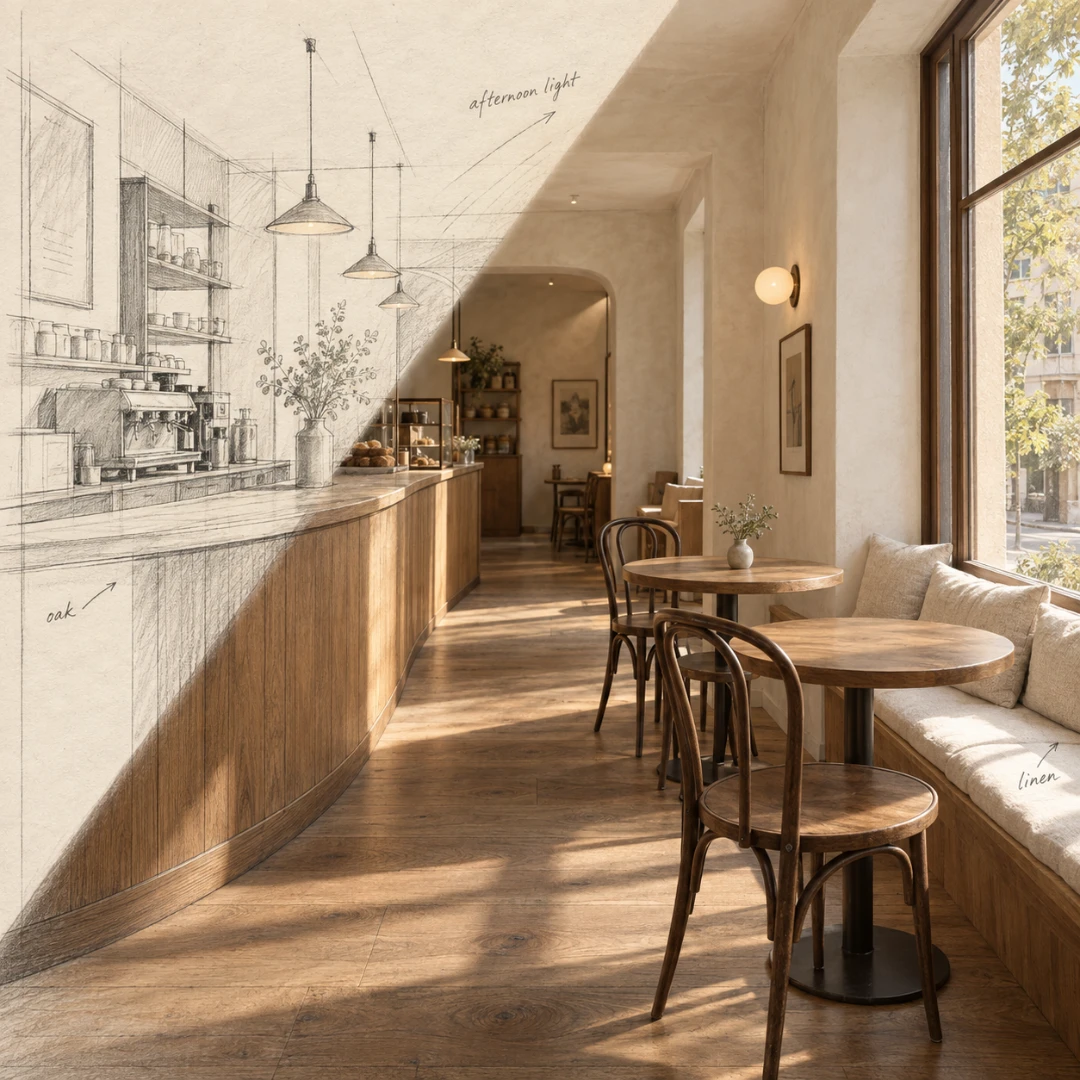
I brought two versions of a small café concept to a client meeting: one with pale oak, another with darker wood. Both started from the same rough sketch in GPT Image 2.5 on TutorGPT. What helped was seeing how the afternoon light changed the mood of the seating area. My client pointed straight to the lighter version. We still had the layout to work through, but the materials conversation became much easier.
Hannah Brooks avatar

Hannah Brooks

Bookshop Events Coordinator

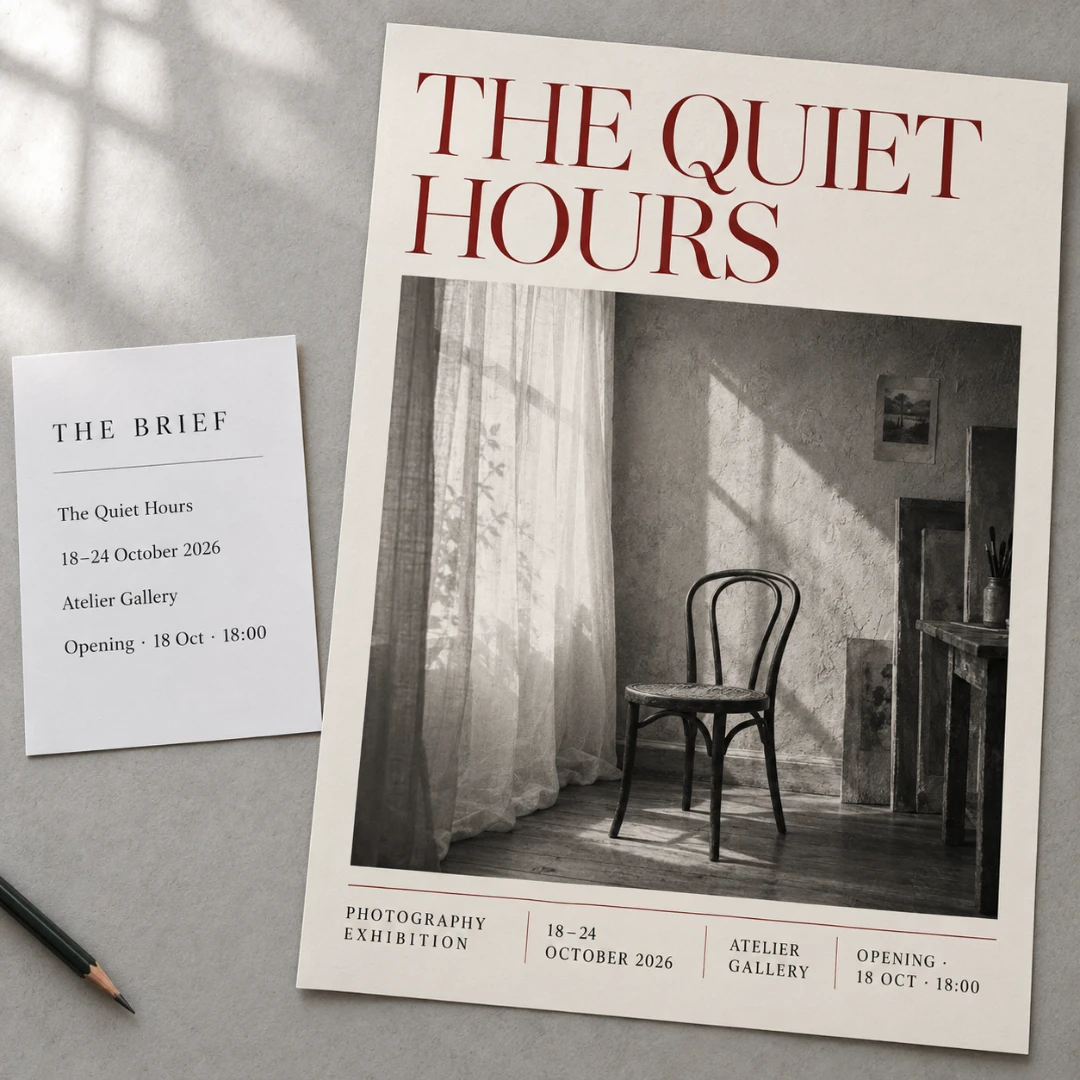
We needed a poster for a Friday film screening at our bookshop. Nothing huge—just the film title, start time, and our address. I gave GPT Image 2.5 on TutorGPT the wording and a reference for the mood. The first draft felt a bit crowded, so I asked for fewer visual elements. I checked every line before sharing it. Getting an actual poster idea to react to was the useful part; I’d been staring at a blank page.
Oliver Reed avatar

Oliver Reed

Newsletter Writer

I opened TutorGPT to make one image for a newsletter and ended up trying a few directions with GPT Image 2.5. The brief was a quiet reading corner, but my first prompt produced something far too tidy. Adding a folded blanket and a book left open made it feel less staged. The four free daily uses were enough for that little experiment. I downloaded my favourite and cropped it to fit the email header.

Questions About GPT Image 2.5

Your Next Image Starts with an Idea

A scene you can picture. A photo you want to revisit. A detail that needs one more adjustment. Bring it to GPT Image 2.5 on TutorGPT and see where it takes you.